

What happens when you give an AI assistant access to a real PostgreSQL database schema and ask it to build a .NET API from that schema?
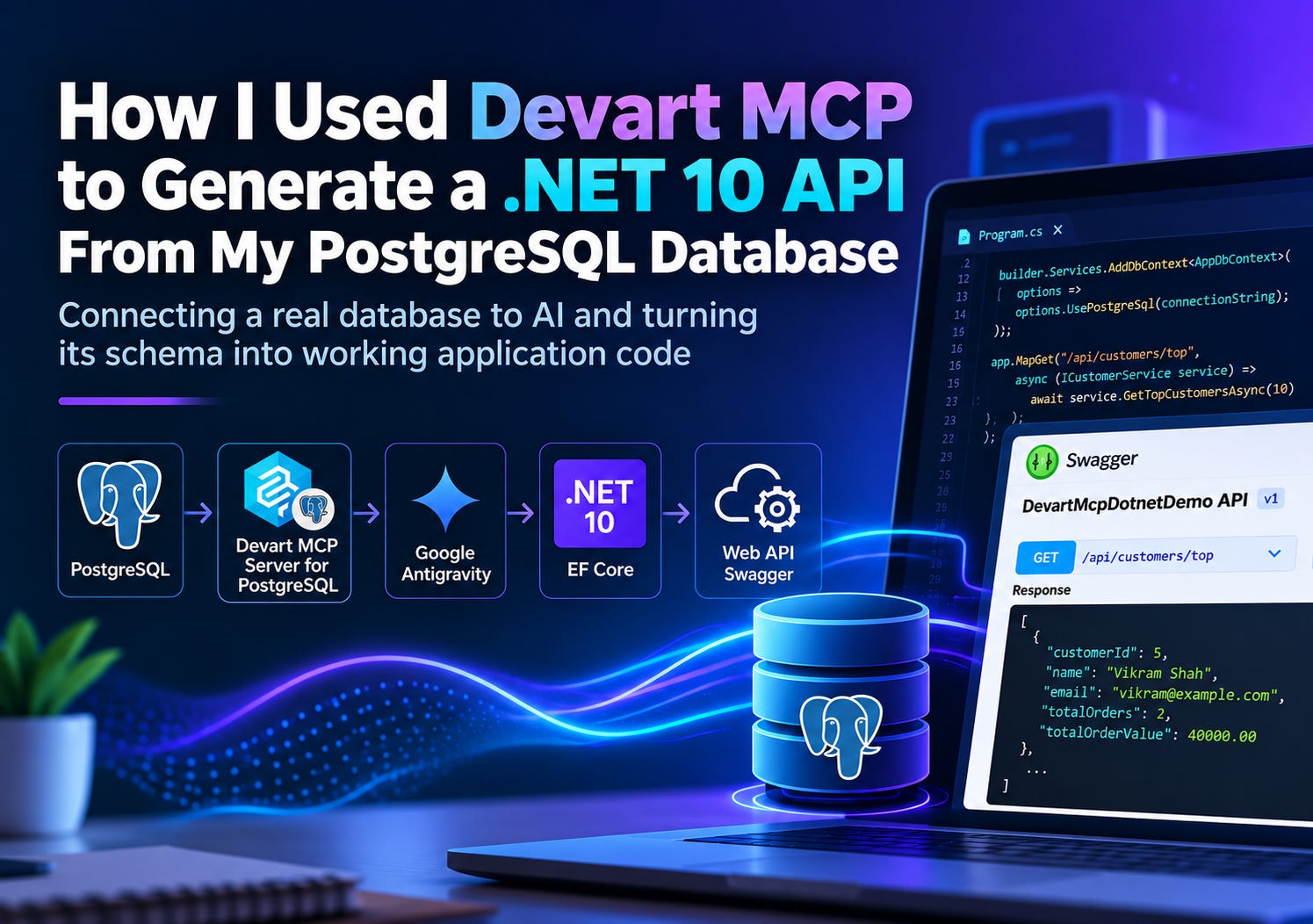
I wanted to find out.
Instead of giving the AI a generic prompt like “Create a customer API in .NET,” I connected Devart’s PostgreSQL MCP Server to a real PostgreSQL database and let the AI inspect the actual tables, relationships, columns, and data.
Then I asked it to generate a .NET 10 Web API using EF Core.
This is the workflow I used to see how far MCP can take AI-assisted development when the AI has real database context.
What I Built
The workflow looked like this:
PostgreSQL
    ↓
Devart MCP Server for PostgreSQL
    ↓
MCP-compatible AI Assistant
    ↓
.NET 10 + EF Core
    ↓
Web API
For this project, I used:
PostgreSQL
Devart MCP Server for PostgreSQL
Devart dotConnect for PostgreSQL
Google Antigravity
.NET 10
EF Core
Swagger / OpenAPI
The interesting part wasn’t simply generating C# code.
The interesting part was giving the AI real database context before asking it to write the API.
Explore the Source Code on GitHub
Want to explore the implementation or try it yourself?
I’ve published the demo project on GitHub, including the .NET 10 Web API generated using the Devart MCP Server for PostgreSQL, EF Core, and PostgreSQL.
GitHub Repository: DevartMcpDotnetDemo
You can explore the code, review the project structure, and use it as a starting point for your own AI-assisted .NET development experiments.
First, I Created a Real PostgreSQL Database
I didn’t want to use a fictional schema.
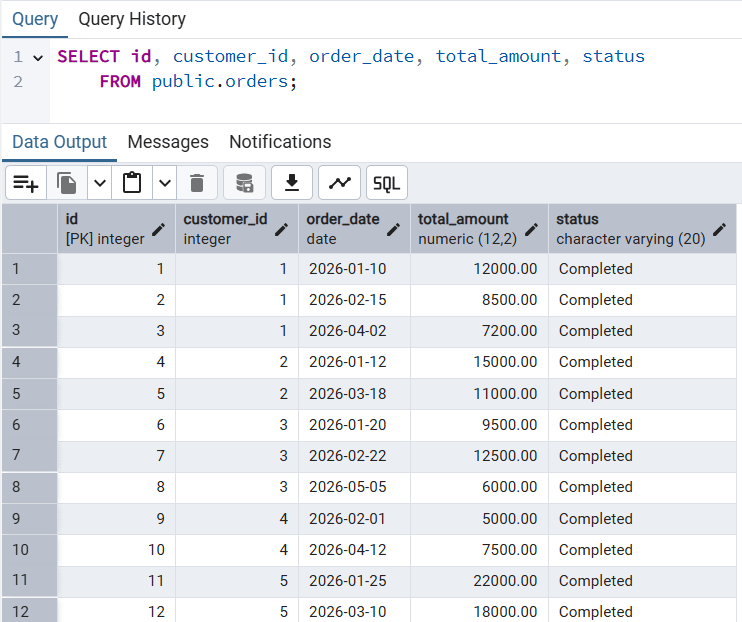
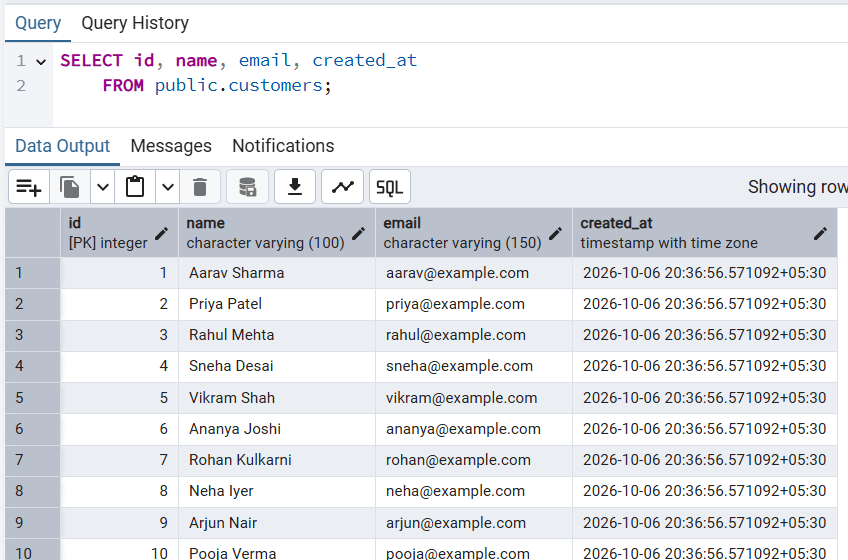
I created a PostgreSQL database called:
DevartMcpDemoThen I created two tables:
Customers
id
name
email
created_at
Orders
id
customer_id
order_date
total_amount
status
There is a foreign-key relationship between:
orders.customer_id → customers.idI also inserted sample customers and orders so the API could work with actual data.
Then I Connected Devart MCP
For the database connection, I used the ADO.NET-based Devart MCP Server for PostgreSQL. It uses dotConnect for PostgreSQL, so I didn’t need to install an ODBC driver or configure a DSN.
For readers, the shortest installation path is the NuGet tool:
dotnet tool install --global Devart.Mcp.PostgreSqlPackage: Devart.Mcp.PostgreSql on NuGet
The package includes dotConnect for PostgreSQL. It requires the .NET 8.0 runtime or later, and a dotConnect for PostgreSQL license key is needed for the database connection.
I then configured a connection profile for my DevartMcpDemo database. The profile stores the PostgreSQL connection details and tells the MCP server to use the stdio transport, which lets the AI client launch the server when needed.
The MCP server gives the AI assistant a structured way to inspect the database. Instead of manually copying my schema into the prompt, the AI can ask the server for tables, columns, keys, relationships, and other metadata.
My First MCP Connection Didn’t Point to the Database I Expected
This was actually one of the most useful parts of the setup.
My first MCP profile was connected to another PostgreSQL database.
The MCP server itself was working.
But when I asked it to list the tables, I was seeing tables from the wrong database.
For example, instead of seeing:
customers
orders
I was seeing tables from a different database.
That immediately reminded me of something important:
When working with MCP + databases, always verify the actual connection context before trusting the generated code.
I created a new Devart MCP profile pointing to:
DevartMcpDemoAfter reconnecting, the MCP server correctly returned the expected database and tables.
I Asked AI to Verify the Database Context
Before asking it to generate anything, I asked the AI to inspect the connection.
I wanted it to verify:
PostgreSQL version
Current database
Current user
Available tables
The response showed that the MCP connection was now pointing to:
DevartMcpDemoand the expected tables were available:
customers
orders
That gave me confidence that the AI was working with the database I actually intended.
Then I Asked AI to Inspect the Schema
Next, I asked the AI to inspect the schema in detail.
I wanted it to understand:
Column names
Data types
Primary keys
Foreign keys
Relationships
Relevant indexes
The structure needed for the API
It could inspect the schema through MCP instead of relying on information I manually pasted into the conversation.
This is where MCP started becoming more interesting to me.
The database itself became part of the AI’s context.
Then I Asked AI to Build the .NET 10 API
Once the AI understood the schema, I created a .NET 10 Web API project.
I wanted a simple but realistic endpoint:
GET /api/customers/topThe endpoint should return the top 10 customers by total order value.
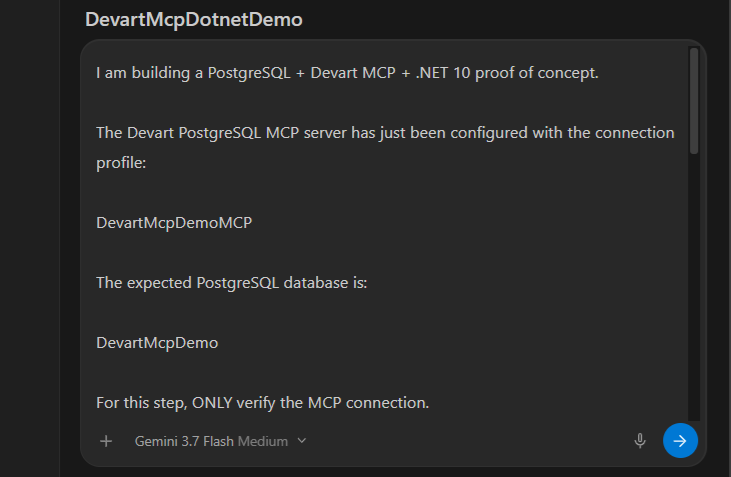
My prompt was intentionally specific.
I asked for:
.NET 10
EF Core
Devart.Data.PostgreSql.EFCore
Async/await
DTOs
Dependency injection
AsNoTracking()Database-side aggregation
COUNTSUMFiltering
Ordering
Limiting to the top 10
Swagger/OpenAPI
I also asked the AI to keep the project organized into:
Models/
Data/
DTOs/
Services/
Controllers/
The Prompt I Used to Generate the .NET 10 API
Here is the prompt I used after the MCP connection and database schema were verified.
You can copy this prompt and adapt the database/table names for your own project:
You are working on a .NET 10 Web API project.

The PostgreSQL database is already created and must NOT be modified.

Use the PostgreSQL schema available through the connected Devart MCP server as the single source of truth.

DATABASE SCHEMA DISCOVERY:

Before generating any code, inspect the actual PostgreSQL database through the connected Devart MCP server.

1. Discover the available databases and schemas.
2. Identify the database configured for this project.
3. Inspect the available tables.
4. Retrieve actual column names and data types.
5. Identify primary keys, foreign keys, unique constraints, and nullability.
6. Verify relationships between the discovered tables.
7. Do not assume or invent any table, column, data type, or relationship that the MCP server does not report.

The existing PostgreSQL database must NOT be modified.

API REQUIREMENT:

Create a production-quality .NET 10 Web API endpoint:

GET /api/customers/top

The endpoint must return the top 10 customers by total order value.

IMPORTANT:
- First verify through MCP that the required customer and order tables exist.
- Verify the actual relationship between them.
- Use only the discovered column names and data types.
- If the required tables or relationships are missing, report the mismatch instead of inventing or assuming them.

IMPLEMENTATION REQUIREMENTS:

1. Target .NET 10.

2. Use a clean project structure:

Models/
Data/
DTOs/
Services/
Controllers/

3. Use Entity Framework Core.

4. Use the Devart PostgreSQL EF Core provider:

Devart.Data.PostgreSql.EFCore
Version: 9.2.192.10

5. Configure PostgreSQL using the Devart provider.

6. Use PgSqlConnectionStringBuilder so the runtime LicenseKey can be supplied securely through configuration.

7. Keep the PostgreSQL connection string and Devart license key outside source code. Use appsettings.json for non-secret configuration and .NET User Secrets/environment variables for sensitive values.

8. Map PostgreSQL date columns to DateTime in the .NET model, where applicable.

9. Use EF Core LINQ only. Do not use raw SQL.

10. The top-customer query must execute the aggregation in PostgreSQL, not in application memory.

11. Use:
    - AsNoTracking()
    - database-side COUNT()
    - database-side SUM()
    - filtering
    - grouping
    - ordering by total order value descending
    - Take(10)

12. Return a DTO rather than exposing EF Core entities directly.

Expected response shape, provided the discovered schema supports this mapping:

[
  {
    "customerId": 1,
    "customerName": "Vikram Shah",
    "orderCount": 2,
    "totalOrderValue": 40000
  }
]

13. Use async/await throughout the data-access path.

14. Use dependency injection.

15. Add Swagger/OpenAPI using:

Swashbuckle.AspNetCore
Version: 6.6.2

16. Make Swagger available when running the application.

17. Do not create EF Core migrations.

18. Do not modify, create, drop, or seed any PostgreSQL tables.

19. Do not change the existing database schema.

20. Create the complete implementation including:
    - entities/models based on the discovered schema
    - DbContext
    - DTO
    - service interface
    - service implementation
    - controller
    - Program.cs configuration
    - appsettings.json configuration example
    - required NuGet packages

21. After generating the code, explain:
    - which files were created
    - how the EF Core models map to the discovered PostgreSQL schema
    - how the EF Core query maps to the actual database relationships
    - how the Devart LicenseKey is configured
    - how to configure User Secrets
    - how to run the project
    - how to open Swagger
    - how to test GET /api/customers/top

22. Do not invent columns, tables, or relationships that are not present in the PostgreSQL schema discovered through MCP.

FINAL INSTRUCTION:

Before writing the final code, inspect the actual database schema through MCP and use that schema as the source of truth.

Do not generate implementation code based on assumptions or predefined schema definitions.
```
The important line in this prompt for me was:
“Do not invent columns, tables, or relationships that are not present in the PostgreSQL schema discovered through MCP.”
That is what makes this different from asking an AI assistant to generate a generic API from a fictional database description.
You Don’t Have to Use Google Antigravity
For this project, I used Google Antigravity as my AI coding environment.
But the MCP part is not tied to one IDE.
The same general MCP idea can be used with other MCP-capable development tools, including:
Google Antigravity
Visual Studio Code + GitHub Copilot
Cursor
Windsurf
The exact UI and configuration file can differ, but the basic pattern is the same:
Install / configure MCP server
        ↓
IDE starts MCP server
        ↓
AI agent discovers MCP tools
        ↓
AI calls the tools when needed
        ↓
Database context becomes available
Always check the current documentation for your chosen tool because MCP configuration and UI options can change over time.
How to Add the Devart MCP Server to Your IDE
The MCP server is separate from the AI coding tool. Install/configure the server once, then connect your IDE or AI client to it.
1. Install the server and create a connection profile
Install the .NET tool:
dotnet tool install --global Devart.Mcp.PostgreSqlThen create a profile for the database. Replace the placeholders with your own values:
devart-mcp-postgresql config add DevartMcpDemoMCP --connection-string "Server=localhost;Port=5432;Database=DevartMcpDemo;User Id=postgres;Password=YOUR_PASSWORD;Unicode=True;License Key=YOUR_DEVART_LICENSE_KEY;" --protocol-type stdioThe server stores profiles in mcpserver.json. The default location is:
%ProgramData%\Devart\AdoNet MCP Server for PostgreSQL\mcpserver.jsonThe profile name (DevartMcpDemoMCP) is the name you pass to the server when starting it. Keep passwords and license keys out of files you commit to source control.
For connection-string options, see the dotConnect for PostgreSQL connection string reference.
2. Google Antigravity
Google Antigravity is the AI coding environment I used for this project.
In Antigravity, open the MCP server configuration/settings and add a local server. With the .NET tool installed, the configuration follows this pattern:
{
  "mcpServers": {
    "devart-postgresql": {
      "command": "devart-mcp-postgresql",
      "args": [
        "run",
        "DevartMcpDemoMCP"
      ]
    }
  }
}
Save the configuration, refresh/restart the MCP connection, and verify that the Devart PostgreSQL tools are available to the agent.
3. Visual Studio Code + GitHub Copilot
In VS Code, create or open .vscode/mcp.json and add:
{
  "servers": {
    "devart-postgresql": {
      "type": "stdio",
      "command": "devart-mcp-postgresql",
      "args": [
        "run",
        "DevartMcpDemoMCP"
      ]
    }
  }
}
You can also use the Command Palette to open the MCP configuration and manage installed servers. The server should appear in VS Code’s MCP server list once the configuration is saved.
4. Cursor
In Cursor, open Settings → Tools & MCPs → User MCP Servers (or the MCP configuration file) and add:
{
  "mcpServers": {
    "devart-postgresql": {
      "command": "devart-mcp-postgresql",
      "args": [
        "run",
        "DevartMcpDemoMCP"
      ]
    }
  }
}
Save the configuration and restart or refresh the MCP connection.
5. Windsurf
In Windsurf, open Settings → Cascade → MCP (the exact label may vary by version), edit the MCP configuration, and add:
{
  "mcpServers": {
    "devart-postgresql": {
      "command": "devart-mcp-postgresql",
      "args": [
        "run",
        "DevartMcpDemoMCP"
      ]
    }
  }
}
Save and refresh the MCP connection. Check your installed Windsurf version’s documentation if the configuration UI has changed.
The configuration file format and settings location vary between tools, but the core details are the same: start the ADO.NET-based Devart MCP server and select the profile that points to your PostgreSQL database.
The Key Idea: MCP Is the Bridge
This is probably the most important concept from this workflow.
The AI coding tool is the MCP client.
The ADO.NET-based Devart MCP Server for PostgreSQL is the MCP server. It uses dotConnect for PostgreSQL, so this workflow stays on the .NET + ADO.NET stack without an ODBC driver or DSN.
PostgreSQL is the data source.
So the architecture becomes:
┌─────────────────────┐
│ PostgreSQL          │
│ DevartMcpDemo       │
└──────────┬──────────┘
           │
           │ Database access
           ▼
┌─────────────────────┐
│ Devart PostgreSQL   │
│ MCP Server          │
└──────────┬──────────┘
           │
           │ MCP
           ▼
┌─────────────────────┐
│ AI Coding Tool      │
│                     │
│ Antigravity         │
│ Cursor              │
│ VS Code + Copilot   │
│ Windsurf            │
└──────────┬──────────┘
           │
           │ Generate code
           ▼
┌─────────────────────┐
│ .NET 10 Web API     │
│ EF Core             │
│ dotConnect          │
└─────────────────────┘
That is why I see MCP as more than another AI feature.
It gives the AI a standardized way to interact with external context and tools.
One Important Security Note
If you connect an AI coding tool to a real database, treat the MCP server like any other integration that has access to your systems. Devart also offers MCP Server Universal, which can work with various data sources through ODBC drivers you already have.
For this project, I used a local development database.
For a real project, I would strongly recommend:
Use a dedicated database user.
Prefer read-only permissions when possible.
Avoid production credentials.
Never put database passwords directly into MCP configuration committed to Git.
Review which MCP tools are enabled.
Understand whether a tool can only read data or can also modify it.
Avoid exposing sensitive customer information unnecessarily.
Review tool calls before allowing write operations.
The goal is to give AI enough context to be useful, not unlimited access to everything.
The Database Schema Became the Input
This is the part I found most interesting.
Normally, I might write something like:
Create a customer API with an orders table.
Then I would manually provide the schema.
With MCP, the AI could inspect the actual PostgreSQL database.
So instead of:
Developer → Schema description → AIthe workflow became:
Developer
    ↓
AI Assistant
    ↓
MCP
    ↓
PostgreSQL
    ↓
Real schema
    ↓
AI-generated code
That removes a lot of manual context copying.
Devart dotConnect for PostgreSQL Handles the Application Database Access
There are two different roles here that are worth separating.
MCP was used to give the AI access to database context and tools during development.
The generated .NET application uses dotConnect for PostgreSQL as its PostgreSQL provider.
For the EF Core application, I used:
Devart.Data.PostgreSql.EFCoreThis means the development workflow and the runtime application have different responsibilities:
MCP
→ AI/database context during development

dotConnect for PostgreSQL
→ PostgreSQL access from the .NET application
That distinction is important.
I Didn’t Want the API to Pull Everything Into Memory
For the top-customer query, I wanted the aggregation to happen in PostgreSQL.
Conceptually, the API needs to calculate:
Customer
    ↓
Orders
    ↓
COUNT orders
    ↓
SUM total_amount
    ↓
ORDER BY total
    ↓
TOP 10
The EF Core query should translate that work into SQL and let PostgreSQL perform the aggregation.
I specifically asked the AI to use:
AsNoTracking()and database-side:
filtering
grouping
counting
summing
ordering
limiting
That is much better than loading every order into application memory and calculating the result in C#.
I Added Swagger So I Could Test the API
I also asked the AI to add Swagger/OpenAPI using:
Swashbuckle.AspNetCoreThat gave me a simple way to inspect and test the generated API.
The endpoint was:
GET /api/customers/topSwagger became useful because I could immediately see:
the endpoint
the response model
the generated API contract
the actual response
Then I Ran the Project
At this point, the generated project contained the pieces I expected:
DevartMcpDotnetDemo
│
├── Controllers
├── Data
├── DTOs
├── Models
├── Services
├── Program.cs
└── appsettings.json
The application was configured for PostgreSQL and EF Core.
I also kept the database connection details outside the source code using configuration/user secrets.
The API Endpoint
The endpoint I wanted was:
GET /api/customers/topThe idea is simple:
Return the 10 customers with the highest total order value.
The response contains information such as:
[
  {
    "customerId": 1,
    "customerName": "Vikram Shah",
    "orderCount": 2,
    "totalOrderValue": 40000
  }
]
The important part isn’t the complexity of this endpoint.
It’s where the information used to generate it came from.
The AI wasn’t working from a fictional schema.
It had access to the PostgreSQL schema through MCP.
What Actually Happened?
The overall workflow became:
1. Create PostgreSQL database
          ↓
2. Create real tables and relationships
          ↓
3. Connect Devart MCP Server
          ↓
4. Verify the active database
          ↓
5. Inspect schema through MCP
          ↓
6. Create .NET 10 Web API
          ↓
7. Ask AI to generate the implementation
          ↓
8. Use EF Core + dotConnect
          ↓
9. Add Swagger
          ↓
10. Test the API
And that workflow felt very different from traditional AI-assisted coding.
Why MCP Made a Difference
Without MCP, I would normally need to provide the AI with something like:
customers
- id: int
- name: varchar
- email: varchar

orders
- id: int
- customer_id: int
- order_date: date
- total_amount: numeric
That works.
But it’s manual.
With MCP, the AI can retrieve that context from the database through tools.
That means the database becomes an accessible source of truth during development.
For larger schemas, this could become even more useful.
Imagine a database with:
100+ tables
500+ columns
dozens of relationships
Manually copying all that context into a prompt isn’t practical.
Tool-based context is a much better fit.
But I Wouldn’t Give AI Unrestricted Database Access
This project also reinforced an important point:
MCP access should be treated as a real capability, not just a convenience.
For a development workflow, read-only access can be a very sensible starting point.
I would be careful about giving an AI assistant permission to:
modify production data
delete tables
change schemas
execute arbitrary write operations
access sensitive customer information
The more capabilities the MCP server exposes, the more important permissions and boundaries become.
AI needs context.
It doesn’t need unlimited authority.
The Developer Is Still in the Loop
The generated code was useful, but I wouldn’t blindly ship it.
AI can generate:
models
DTOs
EF Core queries
controllers
services
configuration
But a developer still needs to review:
correctness
performance
security
authorization
validation
error handling
observability
architecture
business rules
The AI can accelerate implementation.
It doesn’t remove engineering responsibility.
My Biggest Takeaway
The interesting part of this project wasn’t:
“AI can generate a .NET API.”
We’ve already seen that.
The interesting part was:
AI can generate application code with much better context when it can interact with the real database through MCP.
The workflow becomes:
Real Database
     ↓
     MCP
     ↓
AI understands context
     ↓
AI generates code
     ↓
Developer reviews
     ↓
Application
That feels much closer to how I actually work as a developer.
I don’t want AI to guess my system.
I want to give it the right context and let it help me build from that context.
Final Thoughts
This started as a focused project, but I think the pattern is much bigger than the demo.
MCP + databases + AI coding assistants can create a development workflow where the AI doesn’t just receive a prompt.
It can interact with the systems that contain the context needed to produce better code.
For .NET developers, that opens up some interesting possibilities:
Generate APIs from existing database schemas
Explore unfamiliar databases
Generate EF Core models
Understand relationships between tables
Create query implementations
Generate DTOs and service layers
Build internal tools faster
Reduce repetitive schema-to-code work
And with the right permissions, this can be done without turning the AI into an unrestricted database administrator.
Technology Stack
PostgreSQL
        ↓
Devart MCP Server for PostgreSQL
        ↓
Google Antigravity
        ↓
.NET 10
        ↓
EF Core
        ↓
Devart dotConnect for PostgreSQL
        ↓
Swagger / OpenAPI
Resources
Demo project: GitHub – DevartMcpDotnetDemo
What would you build if your AI assistant could understand your database directly?
I’d be interested to hear how you’re using MCP + .NET + PostgreSQL in your own development workflow.